Edge Lighting - LED Borders
- 0.0
- Rating
- 10.00M
- Installs
- Free
- Price
 Analysis by App-foxy
I installed Edge Lighting - LED Borders to see whether animated screen borders are genuinely useful or simply another layer of decoration. My first impression was that it is aimed at people who want their phone to feel more personal when a call or notification arrives. Instead of changing the entire interface, it concentrates on the outer edge of the display, turning an otherwise easy-to-miss moment into something more visible.
That sounds simple, but the practical value depends heavily on how you use your phone. If your device often sits face down, stays on silent, or has notifications buried among many others, a bright border can act as a quick visual cue. If you already check every alert immediately or prefer a quiet, minimal screen, the effect may feel unnecessary. I found the app most interesting as a personalization tool with a narrow purpose, not as something that improves every part of the phone.
What the app is really for in daily use
The app belongs to the personalization category and is developed by EAGLE APPS. It is free to install, suitable for Everyone, and has passed the stage of being a little-known experiment: more than ten million people have installed it. That popularity makes it easier to understand why the concept appeals to users, but it does not automatically make the experience right for every phone or every notification habit.
You May Also Like

 AccuWeather: Weather Radar
AccuWeather Review: A Quick, Clear Forecast for Everyday Decisions
For everyday plans, the best forecast is the one you can understand quickly. AccuWeather makes rain timing, radar, and local conditions easy to act on, with a few trade-offs.

 Hill Climb Racing
Why Hill Climb Racing Still Turns Crashes Into One More Run
A tiny car, a bumpy hill and one more upgrade: Hill Climb Racing keeps resurfacing because its simple chaos makes every near-miss feel personal.

 AliExpress - Shopping App
AliExpress Makes Global Shopping Feel Personal, but Shoppers Bear the Risk
AliExpress turns a global marketplace into a pocket-sized discovery engine. Its reach is useful, its shopping loop compelling, and its trade-offs easy to miss.

 Lords Mobile: Kingdom Wars
Lords Mobile Is a Kingdom-Building Routine, Not a Quick Match
A case-by-case verdict on the building, battles, device demands, and social commitments that make Lords Mobile rewarding for some players and exhausting for others.

 PDF Scanner app - TapScanner
TapScanner Makes Paperwork Easier to Capture, Check, and Share
TapScanner makes scanning with a phone feel less like a rescue operation and more like a dependable step in getting work done. Its capture tools are useful, though not flawless.

 Block Blast!
 Shows How Much a Puzzle Game Can Leave Out
A quiet grid game shows why puzzle players increasingly value instant clarity, repeatable skill and low-pressure play—and where the genre still needs to catch up.
More From Our News Desk
View All News


The basic idea is easy to understand. You choose an edge-lighting presentation, then let the border provide a visual accent around calls and notifications. I like that the concept does not ask me to replace my wallpaper, launcher, or lock screen. It works as a layer of atmosphere around the existing phone experience. For someone who enjoys matching colors to a favorite theme, this is more flexible than relying only on the standard notification indicator.
A realistic example is a busy morning when my phone is on a desk while I prepare breakfast. A normal vibration can disappear into background noise, and a small notification icon may not catch my eye from across the room. A moving border is easier to notice without forcing me to unlock the phone immediately. I can decide whether the alert matters before interrupting what I am doing. That is a modest benefit, but it is more practical than simply saying the screen looks attractive.
The same scenario also exposes the main trade-off. A visible edge effect is useful only when I am comfortable with the phone drawing attention to itself. In a meeting, cinema, bedroom, or shared workspace, the effect may be distracting. I would not treat it as a replacement for sound, vibration, or a deliberate notification routine. It is best viewed as an optional visual signal that complements the phone’s normal behavior.
Getting started without overcomplicating the phone
My advice is to begin with the least dramatic style available to you rather than immediately choosing the most animated design. A border that looks impressive during setup can become tiring when it appears repeatedly throughout the day. I would first test it with a small number of important notifications, then decide whether the effect deserves a more prominent treatment.
It is also worth checking the result while the phone is locked, on a table, and in a dim room. A design that looks balanced in a bright setup screen may feel too intense at night. This is one of the less obvious parts of reviewing an edge-lighting app: the quality of the experience is not determined only by the animation itself. Timing, brightness, the phone’s position, and the number of incoming alerts all change how useful it feels.
The current version is 1.8.15, and the app supports devices running Android 7.0 or later. That broad compatibility is helpful for people using older Android hardware, although visual results can still vary between screens. Display shape, curved edges, cutouts, and the phone’s own notification behavior may affect how cleanly a border appears. I would not assume that an effect shown in a promotional image will look identical on every handset.
Where it differs from ordinary personalization tools
Compared with a wallpaper app, this tool is more event-focused. A wallpaper changes the phone continuously, while edge lighting appears around moments that need attention. Compared with a launcher, it does not reorganize icons or gestures. Compared with the built-in notification light or always-on display options found on some phones, it can offer a more expressive visual treatment, but it may also require more tolerance for animation and screen activity.
That distinction matters when choosing an alternative. If your goal is a calmer lock screen, a system setting may be better. If you want a full visual makeover, a launcher or icon pack will do more. If you only want to know that a message arrived, a vibration pattern is usually more discreet. I see this app as the better choice for someone who specifically wants the edge of the display to become part of the phone’s personality.
Trust, controls, and moments that deserve attention
When I review a personalization app, I do not judge trust from appearance alone. A colorful border can be harmless in practice, but the important questions are what the app asks to access, whether those requests make sense for its purpose, and whether I can make clear choices about when it operates. I recommend opening the app’s permission and notification-related screens during setup instead of accepting every prompt automatically.
I would pay particular attention to any request connected with displaying over other apps, notifications, calls, or accessibility-style control. Those areas can be relevant to an effect that needs to react to phone events, but they also deserve a careful look because they can influence what appears on screen or how alerts are handled. The right approach is not to assume that every request is unsafe or safe; it is to read each prompt and decide whether the requested access matches the feature I intend to use.
Android’s own settings are useful here. After setup, I would revisit the app’s permissions, notification access, battery behavior, and display-over-other-apps controls if they appear on the device. These controls can differ by manufacturer, so I prefer checking them directly on the phone rather than relying on a general promise. If I stop using the border effects, I would also remove access that is no longer needed and uninstall the app if I no longer want its service active.
Data-sensitive moments are easy to overlook because the app’s purpose feels decorative. Calls and notifications can reveal private information through their timing, sender, or content, even when the full message is not shown. A bright animation in a public place may tell people nearby that something arrived. For that reason, I would test the effect with sensitive notifications and consider whether the visual signal itself exposes more than I want others to notice.
My preferred setup would avoid treating every notification as equally urgent. If the phone allows notification categories or per-app controls, I would limit visual alerts to the services that matter most. This reduces distraction and makes the border meaningful. When every shopping update, social reaction, and system reminder triggers the same animation, the effect quickly becomes background noise. Selective use is one of the strongest ways to make this app feel useful rather than ornamental.
Making the experience more private and less distracting
I would also test the app during quiet periods before leaving it enabled all day. Night-time alerts are a good example: an edge effect may wake me or light up a room even when I do not want to respond. If the phone or app offers scheduling, intensity, or notification filtering choices, I would use them conservatively. If those controls are not available in a particular setup, the practical solution is to disable the app during sleep or rely on the phone’s broader Do Not Disturb settings.
Another useful check is battery behavior. A screen effect that appears briefly around an alert is different from a feature that keeps the display active or uses persistent background activity. I would compare the phone’s battery screen before and after regular use rather than guessing from a single session. Older devices may make the trade-off more noticeable, especially if they already struggle with battery life. For me, a decorative effect should never outweigh reliable battery endurance.
There is also a comfort issue. Bright moving borders can be unpleasant for people sensitive to flashing or animated light. I would avoid the most intense designs in dark rooms and stop using the feature if it causes eye strain or headaches. This is not a criticism unique to the app; it is a reason to treat animated personalization as an optional visual layer rather than a permanent requirement.
What you can control and what you should verify yourself
The strongest sign of user agency is the ability to decide when the effect appears, how noticeable it is, and whether the app remains active at all. I would look for those choices during setup and then confirm them after an update. A control that is easy to find is more valuable than a long list of visual styles that leaves the user unsure how to stop them.
I would also review the app’s in-app purchase screen before selecting anything. The download is free, while optional purchases range from $0.49 to $14.99 per item. That means I can evaluate the basic experience without paying, but I should still check what is included before confirming a purchase. I would not pay simply because a particular visual effect looks more polished in a preview. The sensible test is whether the free experience already solves my actual problem: noticing selected alerts without creating more distraction.
Because the app is rated for Everyone, it may be suitable for a wide audience, but that rating does not replace personal judgment about visual intensity, notification privacy, or spending controls. On a shared family device, I would make sure children cannot accidentally purchase optional items and that the phone’s notification behavior is appropriate for the household. The same principle applies to anyone who lends their phone to another person.
One practical workflow I found valuable is to treat the app as an experiment with an exit plan. I would install it, choose a restrained effect, enable it for only important alerts, and use it through a normal day. Then I would ask three questions: Did I notice useful notifications sooner? Did the animation interrupt me unnecessarily? Did I change any system permissions or battery settings that I would rather not keep? If the answers are mostly negative, removing it is the right outcome.
Who should use it, and who should skip it
I think this app suits people who enjoy visual customization and want notifications to have a recognizable presence without replacing the phone’s entire design. It can be especially appealing if your device lacks an eye-catching notification indicator, if you often keep it nearby but do not want to pick it up for every alert, or if you like coordinating the phone’s appearance with a personal theme.
I would be more cautious about recommending it to someone who values maximum battery life, dislikes animated interfaces, or needs notifications to remain discreet. It is also not my first choice for a person seeking advanced automation, a complete home-screen redesign, or a privacy-focused notification workflow. In those cases, built-in Android tools or a more specialized alternative may offer tighter control with less visual activity.
The app is free to try, which lowers the risk of finding out that the style is not for you. Still, I would avoid judging it only from the most attractive preview. The real question is whether the border remains comfortable and useful after repeated alerts. Personalization has a habit of becoming clutter when every option is enabled, so restraint matters more here than collecting the largest number of effects.
My cautious verdict after using it
Edge Lighting - LED Borders is a focused personalization app rather than an all-purpose phone utility. I like the way it turns the display edge into a quick visual signal, and I can see genuine value in using it for selected calls or notifications while the phone is resting nearby. Its strongest quality is immediacy: it adds a noticeable cue without asking me to redesign the whole device.
My recommendation comes with conditions. I would inspect every permission prompt, review the relevant Android controls, limit the effect to meaningful alerts, and test it at night and in public settings. I would also keep an eye on battery behavior and avoid paying for extra decoration until the basic experience proves useful. These steps are not obstacles; they are how I keep a personalization feature under my control.
For me, the app is worth trying if you want a more expressive notification experience and are comfortable managing visual attention carefully. It is not the best fit if quiet alerts, minimal battery use, or a completely system-native approach matter more than appearance. Used selectively, it can make the phone feel more distinctive. Used without limits, it can turn every minor alert into an interruption.
That balance is why I see it as a conditional recommendation rather than an automatic one. The free entry point makes experimentation easy, the Android compatibility is broad, and the purpose is clear. But the best result depends on thoughtful setup, not on simply enabling every effect. If you want the edge of your screen to communicate something useful and personal, this app has a reasonable case. If you want your phone to stay quiet and invisible, the usual built-in controls are probably the better choice.
FAQs for Edge Lighting - LED Borders
01What is Edge Lighting - LED Borders and how does it work?
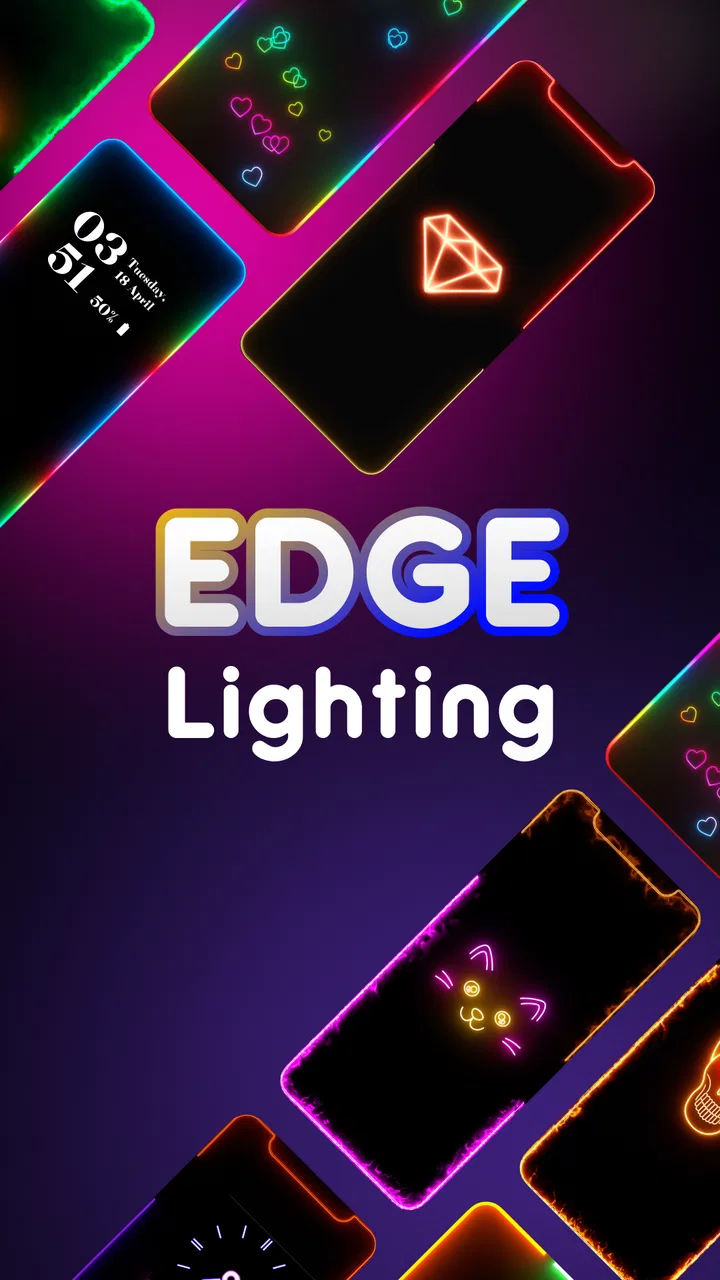
Edge Lighting - LED Borders is a customization app that adds colorful illuminated borders around your phone’s screen. After choosing a frame style, color, animation, and speed, the app displays the effect along the edges of the display, usually over the wallpaper or lock screen. Its appearance can vary depending on your device model, screen shape, Android version, and permission settings.
02Does Edge Lighting - LED Borders drain the battery?
The app may use additional battery because the lighting effect can remain active while the screen is on, and some features may require an overlay service to operate continuously. In testing, the impact generally depends on animation speed, brightness, screen-on time, and how often the effect is displayed. Users who prioritize battery life should choose simpler animations and disable unnecessary background options.
03What permissions does Edge Lighting - LED Borders require?
Depending on the features you enable, Edge Lighting - LED Borders may request permission to display over other apps, access notification-related information, run in the background, or modify certain display settings. These permissions allow the border effect to appear correctly and react to notifications. Before accepting, review each permission and disable any feature you do not need.
04Can I customize the colors, effects, and screen borders?
The app is designed to provide several personalization options, although the exact selection can differ by version and device. You can typically adjust border colors, thickness, glow intensity, animation style, speed, and corner shape. Some presets or advanced controls may be limited to premium access or advertisements. It is worth previewing the effect first to ensure it fits your wallpaper and screen layout.
05Will Edge Lighting - LED Borders work on every Android phone?
The app should work on many modern Android devices, but the experience is not identical on every phone. Curved displays, punch-hole cameras, notches, unusual aspect ratios, battery-saving modes, and manufacturer restrictions can affect alignment or background operation. If the border disappears, looks uneven, or stops after locking the phone, check the app’s display and battery settings and remove background restrictions where appropriate.
Pros
- Offers many colorful edge-lighting styles and animation effects.
- Works well as a visual notification when the phone is muted.
- Lets you adjust lighting speed
- width
- colors
- and corner shape.
- Can be customized to match wallpapers
- themes
- or special occasions.
- Provides a decorative effect without requiring a physical LED notification ring.
Cons
- May consume extra battery
- especially with frequent notifications.
- Some features may be restricted behind ads or in-app purchases.
- Compatibility can vary across phone models and screen shapes.
- Bright animations may feel distracting in dark rooms or at night.
- Requires notification and overlay permissions to function correctly.

Edge Lighting - LED Borders
Gallery